 by
by This is the first in the series of PHP beginner to expert tutorials. In this part, we would look a the benefits of the PHP language. We’ll also go through how to set up PHP in Windows and MAC OS.
1. Overview of PHP
PHP is both a programming language and a scripting language which is suited for web development. The acronym PHP initially means Personal Home Page. Later is becomes PHP: Hypertext Preprocessor. It is also a general-purpose language. This means that you can use it to do a variety of things including: numerical computing, data processing and web programming.
Code written in PHP is processed by a PHP interpreter on a web server. The PHP interpreter is implemented as a module, a Common Gateway Interface(CGI) executable or a daemon. After the code is processed, the results can then be embedded into a HTML page as an output.
Some of the characteristics of PHP includes:
- Ease of use
- Efficient
- Secure
- Very Flexible
- Looks like other languages
2. Why You Need to Learn PHP
Some of the reasons why you must learn PHP is given below:
- it is used for server-side scripting
- it can easily be embedded into HTML
- used for managing dynamic content, databases, session tracking and developing web sites
- WordPress, the most popular content management system is based fully on PHP
- it easily integrates with databases including MySQL, Oracle, PostgreSQL and Microsoft SQL
3. Application Areas of PHP
Since PHP is a general purpose language, it has a wide range of application areas including the following:
- Building applications that perform system functions such as manipulating the file system (create, open, read and write of files)
- Information collection forms – you can use PHP to gather and process data from forms, save the data to databases and even send notifications to user
- Access cookies and session variables
- Handle data encryption
- Implement authorization such as restricting access to certain pages in a site
4. How to Setup PHP
The easiest way to setup PHP is to download and install the WAMP(for Windows) or MAMP (for MacOS). Both applications are free. You can get them from here. MAMP stands for Mac, Apache, MySQL and PHP.
I’m using MacOS and I have downloaded and installed MAMP. If you run it, it would open up the window like shown here:
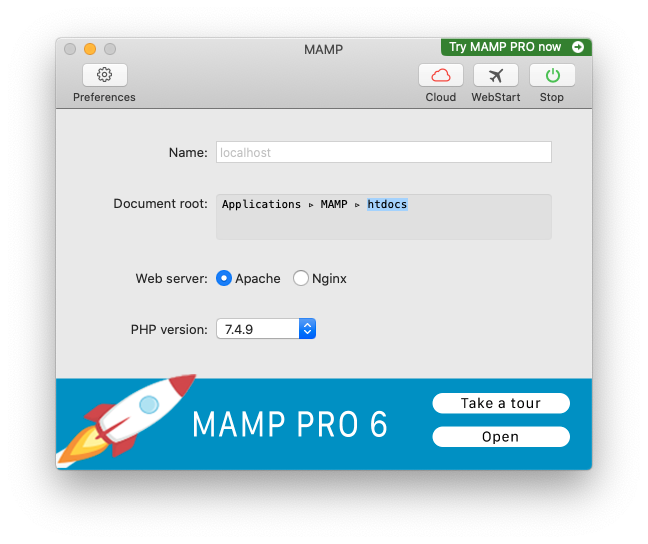
You then click on the Start/Stop button. The it opens up your browser and shows the default page as shown below:
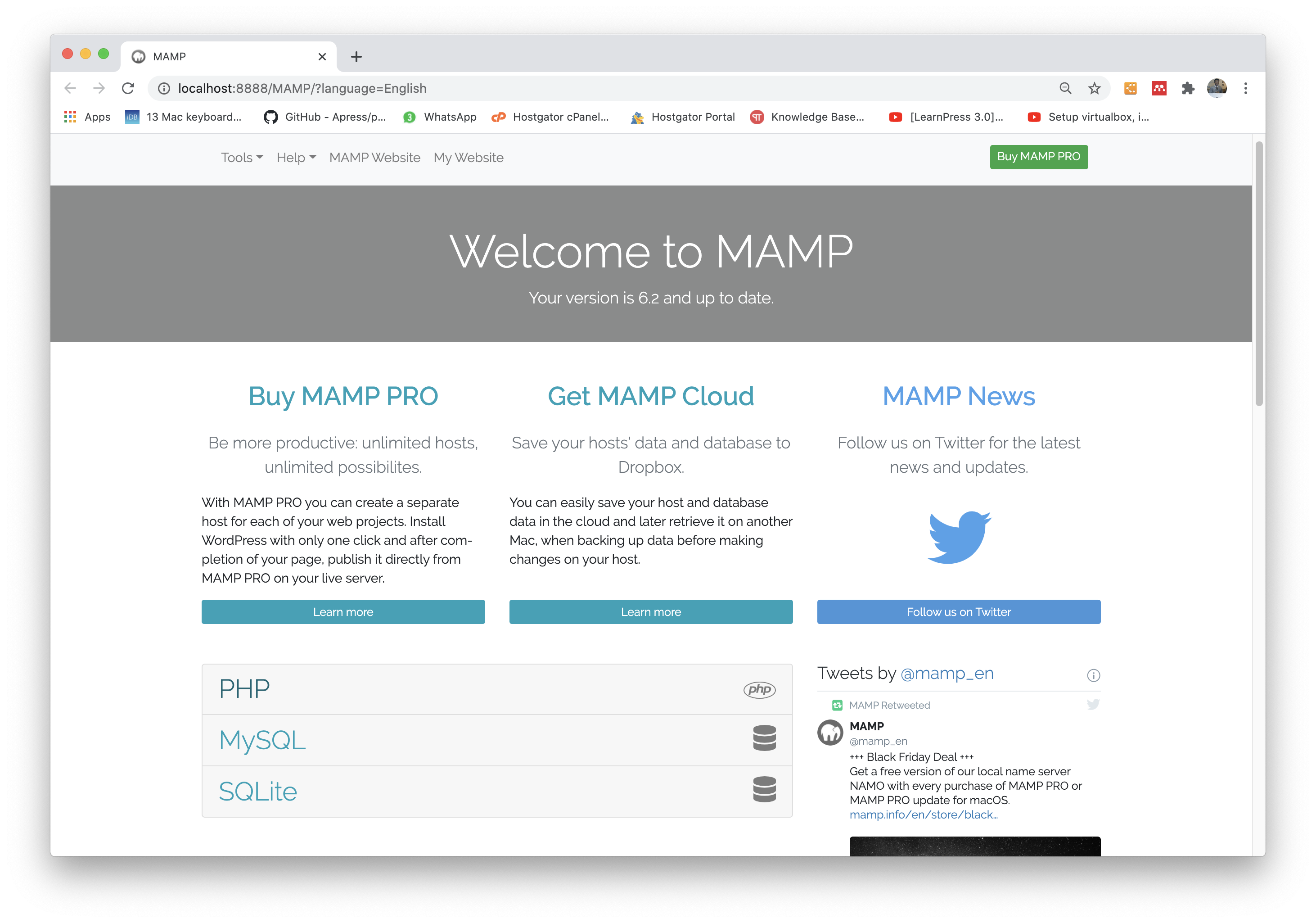
If you see this page, then know that MAMP installed correctly
Root Directory
You also need to know the location of the root folder of the web server from where the pages are server. This directory is normally shown in the MAMP/WAMP interface. For MacOS, it is /Applications/MAMP/htdocs
Install a Text Editor
To proceed with this tutorial, I also recommend you install a text editor. For me, I would be using Visual Studio Code. Download VSCode for free here.
A little demo!
Just to make sure everything is ok, create a file with the content below. Save the file in the root folder with a name index.php. Then start the server and browse to http://localhost:8888. You will see the page with the text ‘Welcome to PHP’.
<html>

   <head>
      <title>PHP Tutorials</title>
   </head>

   <body>
      <?php echo "Welcome to PHP!";?>
   </body>

</html>
