
 by
by In this lesson, you will learn how to connect Netbeans IDE to Microsoft Access database and used MS Access as your data-source in your Java Project.
This would be in three steps. You can find the three steps below
Step 1: Create a database in Microsoft Access
You already know how to do this. To be able to follow this lesson:
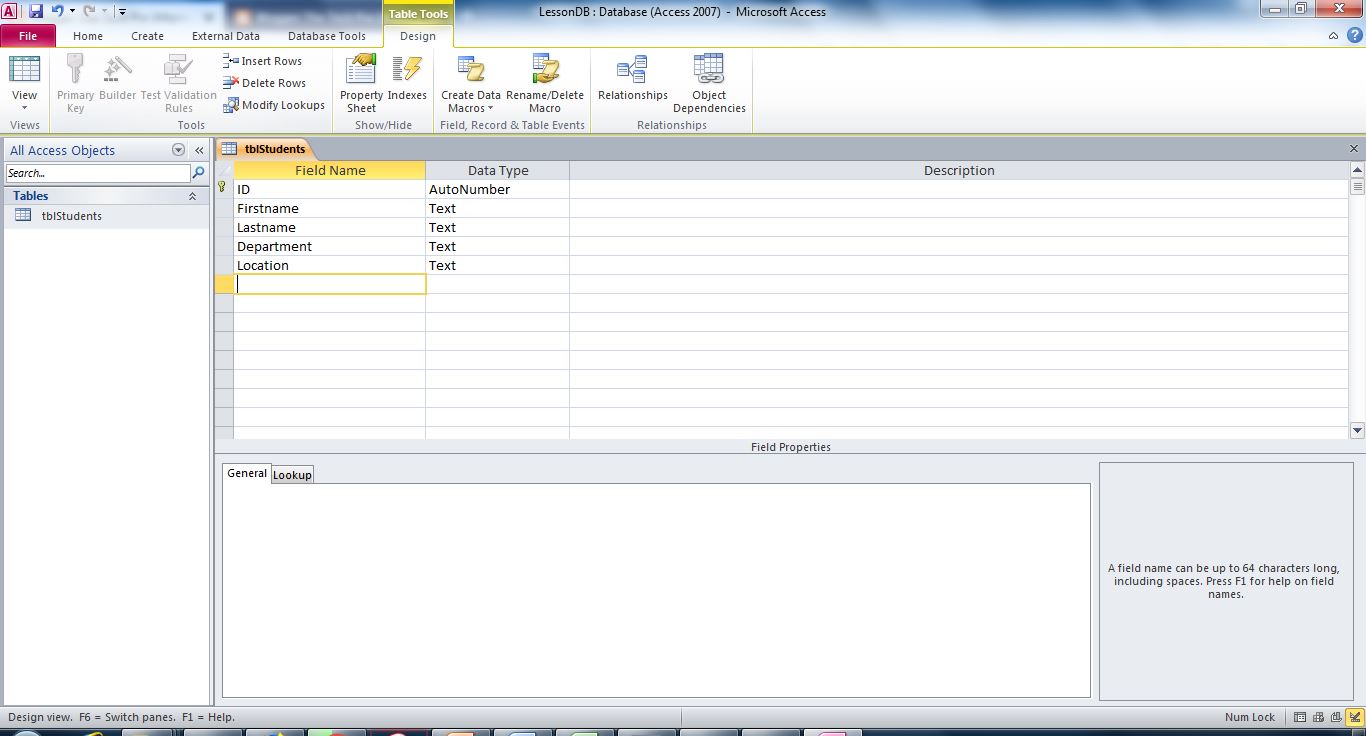
Name the database LessonDB
Create a table and Name it tblStudents
In the table create four columns
- ID
- Firstname
- Lastname
- Department
If you have done this correctly, your design view in MS Access would look like shown below:
Add some random data into the table in Access. Say about 5 rows or more. We would be able to open and view this data in Netbeans
For me after adding data to the tables, I have the content of the table as shown below:

Step 2: Create an ODBC datasource
Go to Control Panel > Administrative Tools > ODBC Data Sources
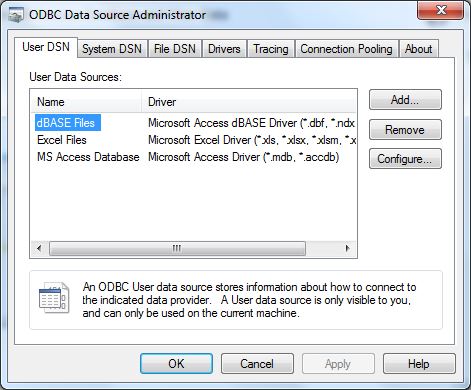
Click on System DSN.
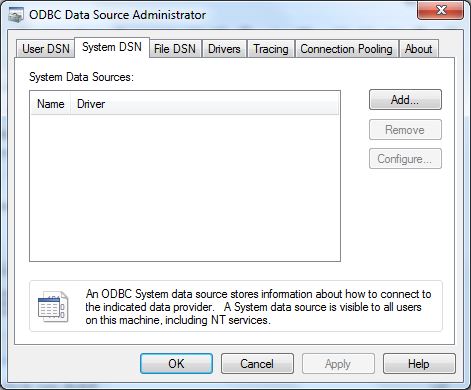
Click on Add. It displays the Create New Data Source window
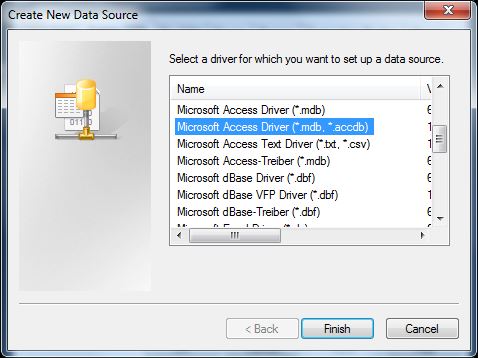
Choose Microsoft Access Driver(*.mdb, *.accdb).
Click on Finish. Another window opens up
Help!!!! I could not see any drivers listed!!!!
The reason for this is that your Operating System is 64 bit while the MS Access is 32 Bit.
Solution
Open the Windows Directory in your C drive and notice this two folders
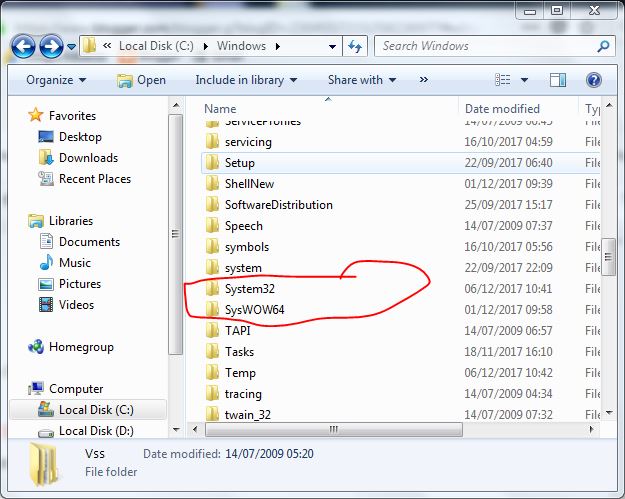
Inside the they SysWOW64, you will find odbcad32. Open it and continue from there. Add a shortcut to it for easy access.
Now that you have solved that problem, let’s continue.
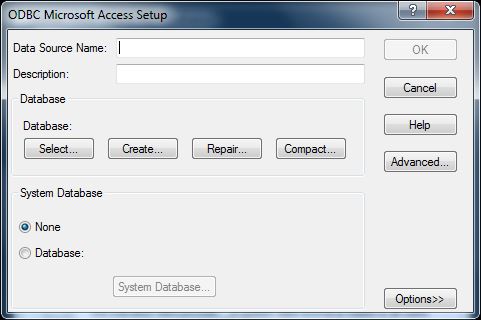
Click on Select, and find the MS Access database we created previously.
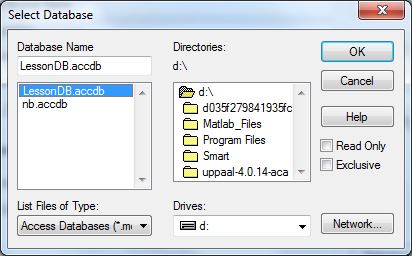
Click on OK. This would take you back to the database selection window
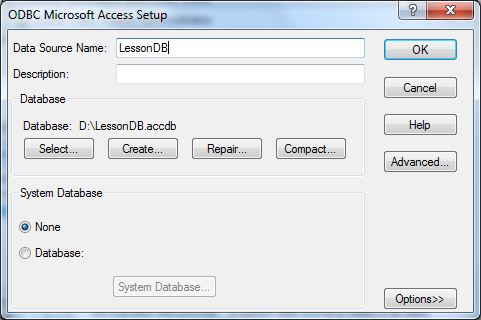
Enter a name for the database. For me I used same name LessonDB. (Make sure that MS Access application is closed, otherwise, you can’t complete it)
Click on Ok to finish.
Step 3: Create an Application in Netbeans.
You already know how to do that.
Click on the Services tab at the left hand side of the screen.
Expand Databases > Drivers
Right-click on ODBC-JDBC Bridge and click on Connect-Using… as shown

It displays the New Connection Wizard dialog box.
Replace the <DB> with the name of the datasource you created. For me it is LessonDB


I dont have ODBC-JDBC Bridge. What will i do?
its only showing for mdb not showing for accdb
I don’t a find a ODBC-JDBC bridge
GUI View of Database Tables. When you right-click a table node in the Services window and choose View Data, the IDE displays a visual representation of the table and its data (as shown in the figure above). You can also add, modify, and delete table data directly in this view.